
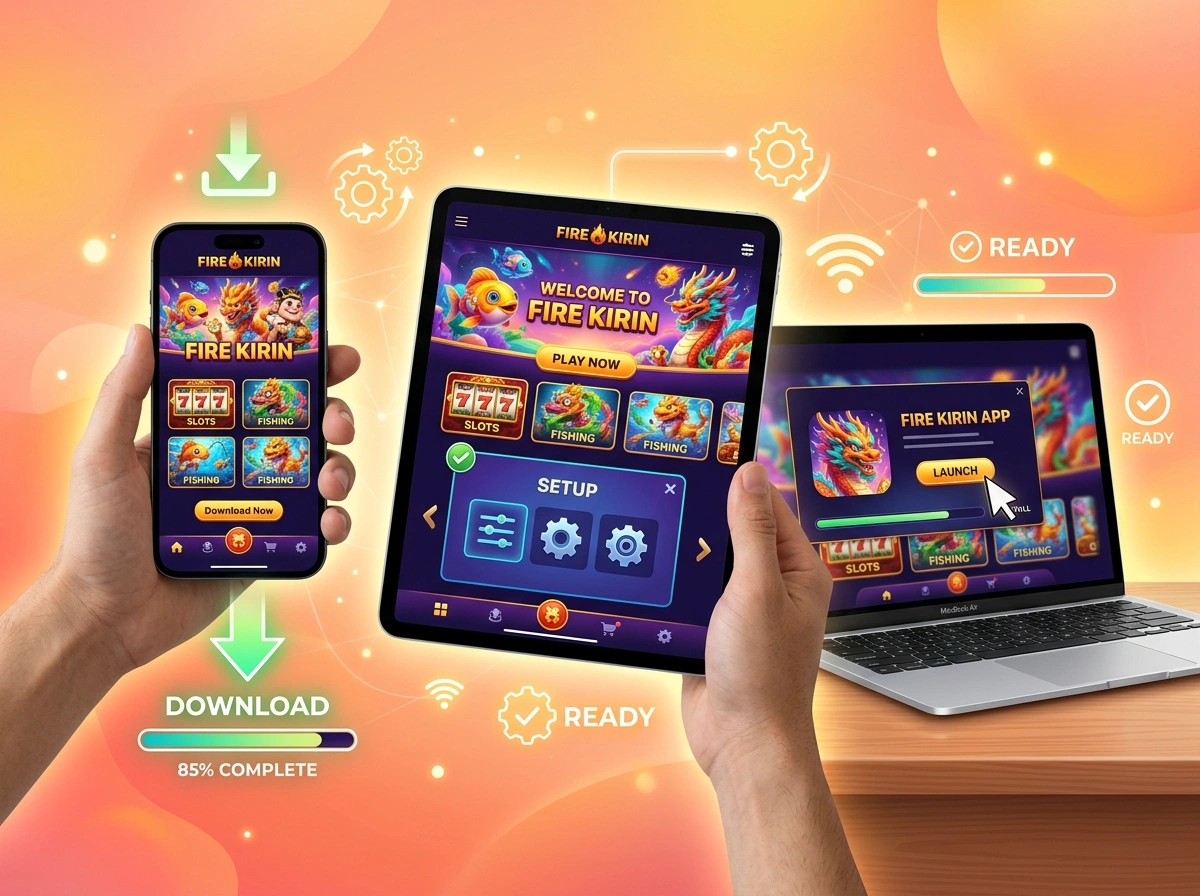
Getting started with a new app should feel simple, not stressful. If you’re looking to download and set up the Fire Kirin app, you’ve come to the right place. This guide walks you through every step, whether you’re using an Android phone, an iPhone, or a Windows PC. We’ll cover system requirements, installation, account creation, and a few troubleshooting tips to keep things running smoothly.
Let’s break it all down so you can be up and running in just a few minutes.
What Is the Fire Kirin App?
Fire Kirin is a popular online gaming platform known for its arcade-style fish shooting games and sweepstakes-style entertainment. It brings colorful, fast-paced action to your screen, with a wide variety of game rooms to explore. Players across the United States enjoy it for its smooth graphics and easy-to-learn gameplay.
The app works across multiple devices, which makes it flexible for however you like to play. You can switch from your phone to your computer without losing your progress, as long as you’re signed into the same account.
A quick note: Online gaming and sweepstakes laws vary by state. Before you play, check the rules and regulations in your area to make sure you’re staying compliant. Responsible play matters, so always set limits that work for you.
System Requirements Before You Begin
Before you start the Fire Kirin app download, make sure your device meets the basic requirements. Checking this first saves you from frustrating crashes or slow performance later.
Android Devices
- Android 5.0 or higher
- At least 100 MB of free storage
- A stable internet connection (Wi-Fi or strong mobile data)
iOS Devices
- iOS 11.0 or later
- iPhone, iPad, or iPod touch compatibility
- At least 100 MB of available space
PC / Windows
- Windows 7, 8, 10, or 11
- An Android emulator (such as BlueStacks or NoxPlayer)
- Minimum 2 GB RAM (4 GB recommended for smoother play)
- A reliable internet connection
Meeting these requirements helps the app run the way it’s meant to. If your device is older, free up some storage and close background apps before installing.
How to Download Fire Kirin on Android
Since Fire Kirin isn’t always available on the Google Play Store, you’ll usually install it directly from the official website using an APK file. Follow these steps carefully.
- Enable Unknown Sources. Open your Settings, tap Security (or Privacy), and turn on Install from Unknown Sources. This lets your phone install apps from outside the Play Store.
- Visit the official website. Open your browser and go to the official Fire Kirin download page. Always use the verified site to avoid fake or unsafe files.
- Download the APK. Tap the Android download button and wait for the file to finish.
- Open the file. Once downloaded, tap the APK in your notifications or file manager.
- Install the app. Follow the on-screen prompts and tap Install. In a few seconds, the app icon will appear on your home screen.
That’s how to install Fire Kirin on Android. Tap the icon to open it and move on to account setup.
How to Download Fire Kirin on iOS
Installing Fire Kirin on iOS works a little differently, since Apple has stricter app policies. Here’s the simplest approach.
- Open Safari. Use Safari rather than another browser for the smoothest experience.
- Go to the official Fire Kirin website. Navigate to the download section made for iOS users.
- Select the iOS option. Tap the Apple or iOS download button.
- Trust the developer (if prompted). Go to Settings > General > VPN & Device Management, find the app profile, and tap Trust. This step is sometimes required for apps installed outside the App Store.
- Launch the app. Return to your home screen, tap the Fire Kirin icon, and you’re ready to go.
Running Fire Kirin on iOS is straightforward once you trust the developer profile. If the app won’t open, double-check that step.
How to Download and Install Fire Kirin on PC / Windows
Want a bigger screen? You can run Fire Kirin on your computer using an Android emulator. This Fire Kirin setup guide for PC uses BlueStacks as an example, but other emulators work too.
- Download an emulator. Visit the official BlueStacks or NoxPlayer website and download the installer.
- Install the emulator. Run the setup file and follow the prompts. This may take a few minutes.
- Open the emulator. Launch it once installation finishes.
- Load the Fire Kirin APK. Download the Fire Kirin APK from the official site, then drag and drop it into the emulator. You can also use the emulator’s built-in file installer.
- Install and launch. The emulator handles the rest. Once installed, click the Fire Kirin icon to start playing on your desktop.
Playing on a PC gives you crisp visuals and comfortable controls, which many players prefer for longer sessions.
Setting Up Your Fire Kirin Account
Once the app is installed, the next step is creating your account. Here’s how it usually works.
- Open the app. Tap the Fire Kirin icon to launch it.
- Request login credentials. On most platforms, you’ll need to contact an authorized distributor or agent to receive your username and password. This is standard for the platform.
- Log in. Enter your provided username and password on the login screen.
- Update your details. Change your password to something secure and personal once you’re logged in.
- Add funds responsibly. Follow the platform’s instructions to load credits through your distributor, keeping your budget in mind.
Keep your login details private and never share them. Treat your account credentials like you would any other sensitive information.
Tips for Getting Started
Now that you’re set up, here are a few pointers to help you enjoy the experience.
- Start small. Explore the free or lower-stakes rooms first to learn the controls.
- Use a strong connection. A stable Wi-Fi signal prevents lag during fast gameplay.
- Keep the app updated. Updates often fix bugs and improve performance.
- Set personal limits. Decide on a time and budget that works for you before you start.
- Learn each game. Different rooms have different rules, so take a minute to understand them.
These small habits make a big difference in how much you enjoy the platform.
Troubleshooting Common Issues
Even with a smooth install, you may run into a hiccup now and then. Here are quick fixes for the most common problems.
The app won’t install. Make sure “Unknown Sources” is enabled on Android, or that you’ve trusted the developer profile on iOS. Confirm you have enough storage space too.
The app crashes or freezes. Close background apps, restart your device, and check that your operating system meets the requirements. Reinstalling the app often clears stubborn bugs.
You can’t log in. Double-check your username and password for typos. If they still don’t work, contact your distributor to reset your credentials.
Slow performance. Switch to a stronger internet connection and clear the app’s cache. On PC, allocate more RAM to your emulator if possible.
Download keeps failing. Confirm you’re using the official website and that your connection is steady. Try clearing your browser cache and downloading again.
If problems continue, reaching out to the platform’s support team is your best bet for a quick resolution.
Final Thoughts
Downloading and setting up the Fire Kirin app is easier than it might seem at first. With the right steps for your Android, iOS, or Windows device, you can be playing in just a few minutes. Always download from the official source, keep your account details secure, and play responsibly within your budget.
Remember to check your state’s gaming and sweepstakes regulations before you start. Once everything is in place, you’re free to dive into the colorful, fast-paced action that makes Fire Kirin such a favorite among players. Enjoy the experience, and happy gaming.
Please visit official site for more info.

